HTML CSS JS Playground – Live Code Editor | TempScript
Sandboxed preview • Nothing leaves your device

HTML CSS JS Playground

Write HTML, CSS and JavaScript in three separate editors, then run your code instantly in a sandboxed preview. Everything happens in your browser — no sign-up, no server, no tracking.

HTML CSS JavaScript playground

Sandboxed by design. Your code runs inside an isolated <iframe sandbox> so it cannot access this page, your cookies, or your local storage. Nothing is sent to a server.
HTML 0 chars 0 lines
CSS 0 chars 0 lines
JavaScript 0 chars 0 lines
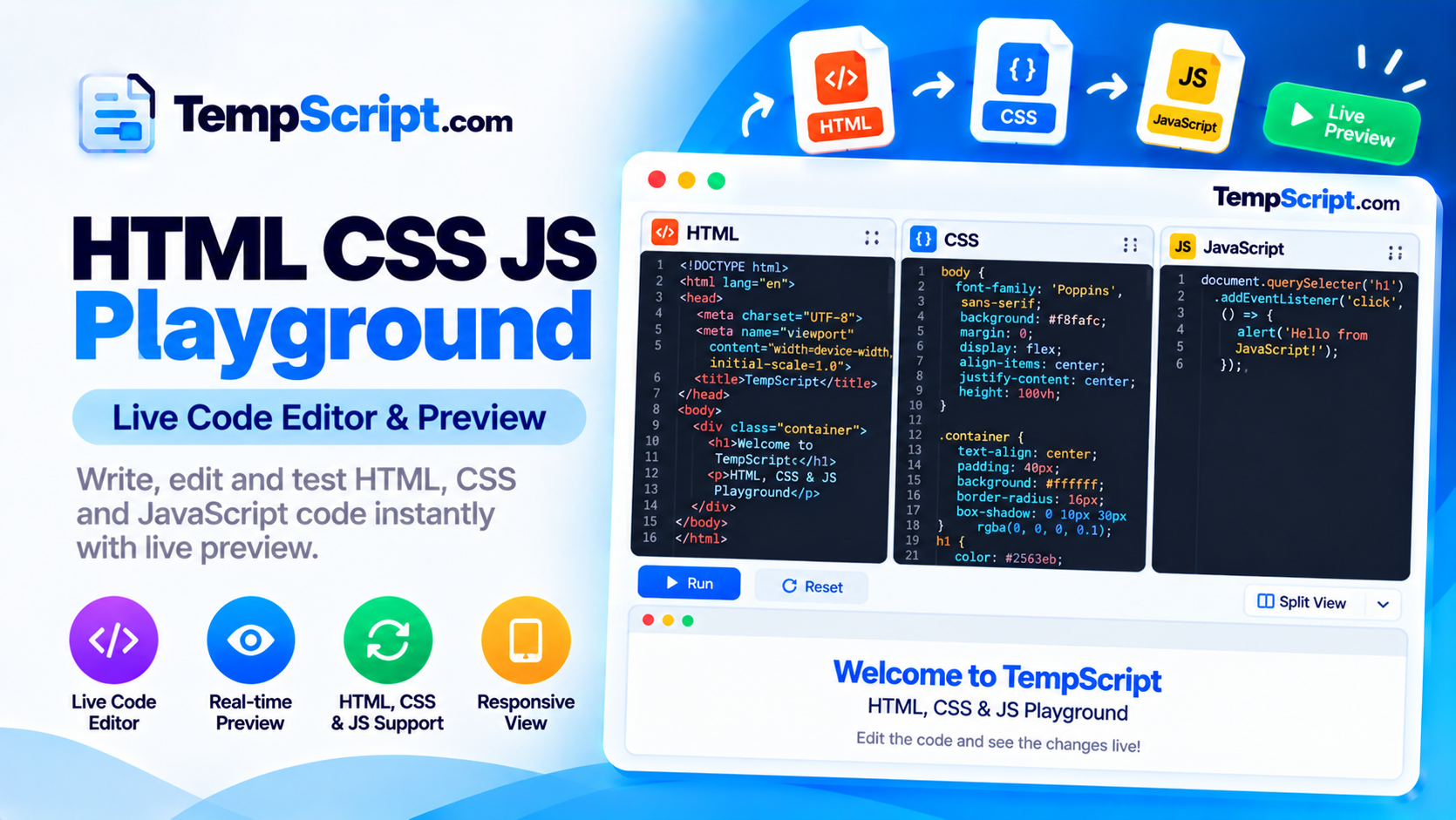
HTML CSS JavaScript playground with three code editors and a live preview panel
Write HTML, CSS and JavaScript, then run it in the sandboxed preview.

How to use the HTML CSS JS playground

  1. Write your HTML. Add markup in the HTML editor — anything you would put inside a <body> tag.
  2. Add styling. Use the CSS editor for rules that apply only inside the preview. Styles cannot leak out of the sandbox.
  3. Add behaviour. Put JavaScript in the JS editor. It runs inside the sandboxed iframe after the page loads.
  4. Click Run. Your code is injected into the preview as a single self-contained document. The preview reloads cleanly each time.
  5. Iterate or reset. Use Sample code to load a working demo, Reset to restore the last sample, or Clear all to start from an empty canvas.

Key features and benefits

Sandboxed execution

User code runs in an isolated iframe with a strict sandbox attribute — it cannot touch the parent page.

Instant preview

Click Run and your combined HTML, CSS and JS is rendered in a single self-contained document.

Three separate editors

Keep HTML, CSS and JavaScript cleanly separated with their own editors, counters and shortcuts.

Responsive layout

Side-by-side editors and preview on desktop, stacked layout with view tabs on mobile.

Console output

Log messages from the preview appear in an inline console panel so you can debug quickly.

Copy & download

Copy all three panels to your clipboard or download the combined code as a single HTML file.

Privacy, security and limitations

  • Sandbox isolation. Your code runs inside an iframe with the sandbox="allow-scripts" attribute. The iframe has an opaque origin, so it cannot access this page's DOM, cookies or localStorage, and cannot open new windows or submit forms.
  • Fully client-side. Nothing is uploaded to any server. Your code lives only in memory and disappears when you close or reload the page.
  • Do not paste secrets. Even though nothing is transmitted, avoid pasting production API keys or passwords into any online editor.
  • External resources. You can load CDN-hosted scripts and styles inside the HTML panel. Those libraries run in the sandbox too, but they still make network requests to their own origins.
  • Blocked by sandbox. Form submission, top-level navigation, popups and some modal dialogs are disabled for safety. If you need to test those, use a real browser tab.
  • Performance. The editors work comfortably up to a few hundred kilobytes each. Very large snippets may slow the browser because everything runs in memory.

Frequently asked questions

Is this HTML CSS JS playground safe to use?
Yes. Your code runs inside a sandboxed iframe that is isolated from the parent page. It cannot access cookies, localStorage or the DOM of the surrounding site. Nothing is uploaded to a server.
Can I use external libraries like React or jQuery?
You can load external libraries by adding script or link tags inside the HTML panel. The playground does not bundle any framework, but any CDN-hosted library that works in a browser can be included.
Does the playground save my code?
Your code is kept in memory only. Reloading or closing the page clears all three panels. To keep your work, copy it out or download it before leaving.
Why does my JavaScript not run?
Check the browser console inside the preview for error messages. Common causes include a syntax error in your JS, referencing an element before it exists in the DOM, or a blocked external resource.
Can I open links or submit forms from the preview?
The preview iframe uses a sandbox that blocks form submission and top-level navigation for safety. If you need to test a link, open it in a new browser tab instead.
Is there a size limit?
The editors are comfortable up to a few hundred kilobytes of code. Extremely large snippets may slow the preview because everything runs in your browser's memory.

Why a browser-based HTML CSS JS playground is useful

A code playground is a small environment where you can write, run and iterate on a snippet of code without setting up a project, installing a build tool, or opening an editor. For front-end work, that means a place to drop HTML, CSS and JavaScript, see the result instantly, and adjust until it looks right.

Common uses

  • Testing a snippet. Paste a function, style rule or markup fragment and see immediately whether it behaves as expected.
  • Learning. Beginners can experiment with HTML structure, CSS layout and JavaScript DOM manipulation in a safe sandbox.
  • Debugging. Reproduce a reported bug in a small, isolated page rather than the full application.
  • Prototyping. Sketch a layout or interaction before committing to a real project structure.
  • Sharing examples. Copy the combined code into a gist, message or email so someone else can reproduce your result.

Why the preview is sandboxed

Running arbitrary JavaScript on the same origin as the surrounding page would be a serious security problem. Scripts could read cookies, modify the parent DOM, or steal information. The safe approach is to isolate user code inside an iframe with a restrictive sandbox attribute. This playground uses sandbox="allow-scripts", which permits JavaScript execution but blocks form submission, top-level navigation, popups, and — crucially — removes the iframe's access to the parent origin's storage and cookies.

A few tips for using the playground effectively

  • Keep the HTML panel focused on content, and put styling in the CSS panel.
  • Attach JavaScript event listeners after the DOM is ready. Either put your script at the end of the HTML body or wrap it in a DOMContentLoaded listener.
  • Use console.log() freely. The inline console panel shows messages from the sandbox so you can debug without opening dev tools.
  • Remember that each Run replaces the preview entirely.

About this tool

This playground is part of the TempScript free online tools collection. It runs entirely in your browser, requires no account, and never sends your code anywhere. If you work with text and code regularly, you may also find our JSON formatter and text case converter useful for quick formatting tasks.

© 2026 TempScript. All rights reserved.