Audio Trimmer – Cut MP3, WAV, M4A Online | TempScript
100% browser-based • Files never leave your device

Audio Trimmer

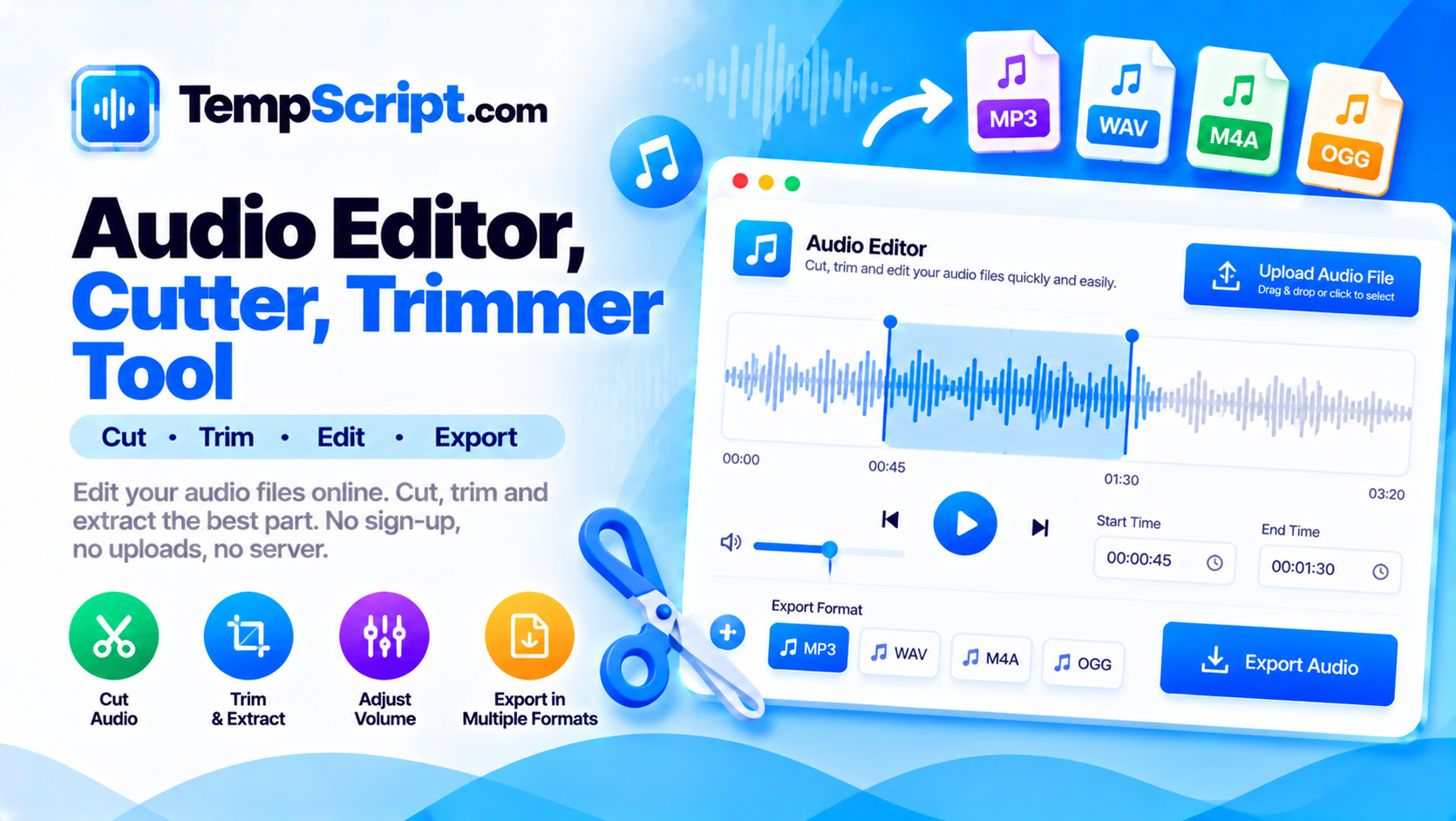
Trim an audio file by dragging the start and end handles on the waveform. Preview the cut, then export as WAV, MP3 or OGG Opus. Everything runs locally using the Web Audio API — no uploads, no sign-up.

Audio trimmer tool

Private by design. The file is read from your device and decoded entirely in your browser using the Web Audio API. MP3 and Opus encoding also run locally. Your audio is never uploaded, stored, or logged anywhere.

Drop an audio file here

or click to browse — MP3, WAV, M4A, OGG, Opus and FLAC

Up to about 100 MB. Files are decoded in memory.

Audio trimmer with a waveform and draggable start and end handles
Trim audio by dragging the waveform handles and export as WAV, MP3 or OGG Opus.

How to use the audio trimmer

  1. Upload an audio file. Drag a file onto the drop zone or click Choose audio. Any format the browser can decode works.
  2. Wait for the waveform. The file is decoded and a waveform is drawn on the canvas. This may take a moment for long files.
  3. Set the trim range. Drag the blue handles left or right, or use Set start here and Set end here while playing.
  4. Choose an export format. WAV is lossless; MP3 is universal and small; OGG Opus is the smallest at similar quality.
  5. Export. Click the export button. On first use of MP3 or Opus, the encoder is downloaded once and then cached. The trimmed file downloads when ready.

Key features and benefits

Visual waveform

The waveform is drawn on a canvas so you can see exactly where to place the trim handles.

Drag handles

Pull the start and end markers to any position. The trim length updates live.

Preview playback

Play the file with a red playhead showing the current position. The trim region is highlighted on the waveform.

Three export formats

WAV for lossless quality, MP3 for universal support, OGG Opus for the smallest files. All produced by real encoders that run locally.

Fully private

Everything happens in your browser. The file is never uploaded, stored, or logged anywhere.

Fast after first use

Encoders are cached by the browser after the first download, so later exports of MP3 or Opus start instantly.

Supported formats

Input support depends on your browser, but any format listed below generally works in Chrome, Edge, Firefox and Safari.

Format Extension Input Export
MPEG Audio Layer III .mp3 Yes Yes (real MP3 encoder)
Waveform Audio .wav Yes Yes (PCM 16-bit, lossless)
MPEG-4 Audio / AAC .m4a, .aac Yes Choose WAV, MP3 or Opus
Ogg Vorbis .ogg Yes Choose WAV, MP3 or Opus
Opus .opus, .webm Yes Yes (real Opus encoder)
FLAC .flac Yes (in most modern browsers) Choose WAV, MP3 or Opus

Privacy and limitations

  • Fully client-side. The file is read with the File API, decoded by the Web Audio API, and re-encoded by JavaScript encoders that run in your browser. No content is transmitted to any server.
  • No tracking. The tool does not record which files you load or how you trim them. There is no analytics on audio content.
  • No automatic saving. The audio is held in memory only. Reloading the page clears everything.
  • MP3 and Opus encoders are downloaded on demand. When you choose MP3 or Opus for the first time and click Export, the encoder library is downloaded from a CDN and cached by your browser. Later exports of the same format start instantly.
  • Lossy vs. lossless. WAV is lossless — the trimmed output has the exact same samples as the source. MP3 and Opus are lossy — they discard some detail to make the file smaller. The trade-off is visible in the format selector.
  • Memory and CPU limits. The full audio is decoded into memory, so file size matters more than with streaming tools. Files up to about 100 MB work well. MP3 and Opus encoding are CPU-intensive and may take a few seconds for long files.
  • Sample-accurate cuts. The trim points are converted to sample indices based on the source sample rate, so the cut is accurate to one sample. If a click is audible at the boundary, add a few milliseconds of fade in your audio editor.

Frequently asked questions

Is my audio uploaded to a server?
No. The file is read from your device and processed entirely in your browser using the Web Audio API and JavaScript encoders that run locally. Your audio never leaves your device.
What audio formats are supported?
Any format the browser can decode via the Web Audio API works: MP3, WAV, M4A/AAC, OGG, Opus and FLAC (in most modern browsers). Export supports WAV, MP3 and OGG Opus.
Which export format should I choose?
WAV is lossless and works everywhere but produces the largest files. MP3 is smaller and universally supported, with a choice of bitrates. OGG Opus gives the smallest files at similar quality to MP3 and is supported by all modern browsers but not by all older software.
Why does MP3 or Opus export take longer the first time?
MP3 and Opus are produced by encoders that are downloaded the first time you export in that format. After the first use, the encoder is cached by your browser and later exports start instantly.
Can I trim without re-encoding the audio?
Not with this tool. The trimmed output is re-rendered from the decoded audio, so the result is a fresh file in the selected format. This guarantees the cut is sample-accurate and preserves the exact audio you hear in the preview.
Is there a size limit?
The tool works well with files up to about 100 MB. Very large files may be slow because the entire audio is decoded into memory before trimming, and MP3/Opus encoding is CPU-intensive.

A practical guide to trimming audio in the browser

Trimming audio is one of those tasks that seems simple until you try to do it well. Cutting a file is easy; cutting it at exactly the right moment, without introducing a click at the boundary, is where the details matter. A browser-based trimmer that shows you a waveform and lets you drag the boundaries is often the fastest way to get a clean cut, especially for quick edits like removing silence at the start of a podcast or extracting a short clip from a longer recording.

How the Web Audio API makes this possible

Modern browsers expose a complete audio pipeline through the Web Audio API. A file is loaded as an ArrayBuffer, then decoded into an AudioBuffer — an in-memory representation of the audio samples with a defined sample rate and channel count. From there, the samples can be sliced, mixed, filtered, and re-encoded. Playback happens through an AudioContext, which provides sample-accurate scheduling and lets you control volume, position, and playback rate independently of the underlying data.

This tool uses that pipeline end to end. The uploaded file is decoded into an AudioBuffer, the waveform is drawn by sampling the peak amplitude in each pixel column, and the trimmed output is written in the chosen format by reading the samples between the start and end points.

Choosing an export format

There is no single best format for every use case. Here is a quick guide:

  • WAV is uncompressed PCM. It is lossless, universally supported, and the safest choice when the audio will be imported into a video editor or DAW. Files are about 10 MB per minute of stereo 44.1 kHz audio.
  • MP3 is the most widely supported compressed format. At 192 kbps, most listeners cannot tell it apart from the source. It is a good default for sharing or casual listening, and it plays on literally every device.
  • OGG Opus is the modern standard for compact audio. At the same bitrate, it sounds better than MP3, and files are typically 20–30% smaller. It is supported by every current browser and by most modern software, but not by some older media players or embedded systems.

Why browser-based encoding is now practical

Until recently, encoding MP3 in the browser was impractical because it required either a native plugin or a huge WebAssembly build. The pure-JavaScript lamejs encoder changed that — it is small (about 200 KB), fast enough for typical trims, and works in every browser without any plugin. For OGG Opus, the encoder is likewise small enough to load on demand. Because both libraries only download when the user actually picks that format, the initial page load stays fast for the common case of trimming and exporting to WAV.

Common pitfalls

  • Very long files. Decoding an hour-long podcast into memory takes a moment and uses significant RAM. Trim shorter segments when possible.
  • Different sample rates. The exported file keeps the source sample rate. If you need a different rate, resample the file after trimming.
  • Mono vs. stereo. Both work. Stereo files are twice the size of mono files at the same sample rate and length.
  • Lossy sources. Trimming an MP3 and re-exporting as MP3 re-encodes the audio, which loses a tiny bit of quality. Trim from the highest-quality source you have if that matters.

About this tool

This audio trimmer is part of the TempScript free online tools collection. It runs entirely in your browser, requires no account, and never sends your files anywhere. If you work with media regularly, you may also find our image compressor and PDF merger useful.

© 2026 TempScript. All rights reserved.