CSV Viewer & Converter – Preview, Filter, Convert to JSON | TempScript
100% browser-based • Files never leave your device

CSV Viewer & Converter

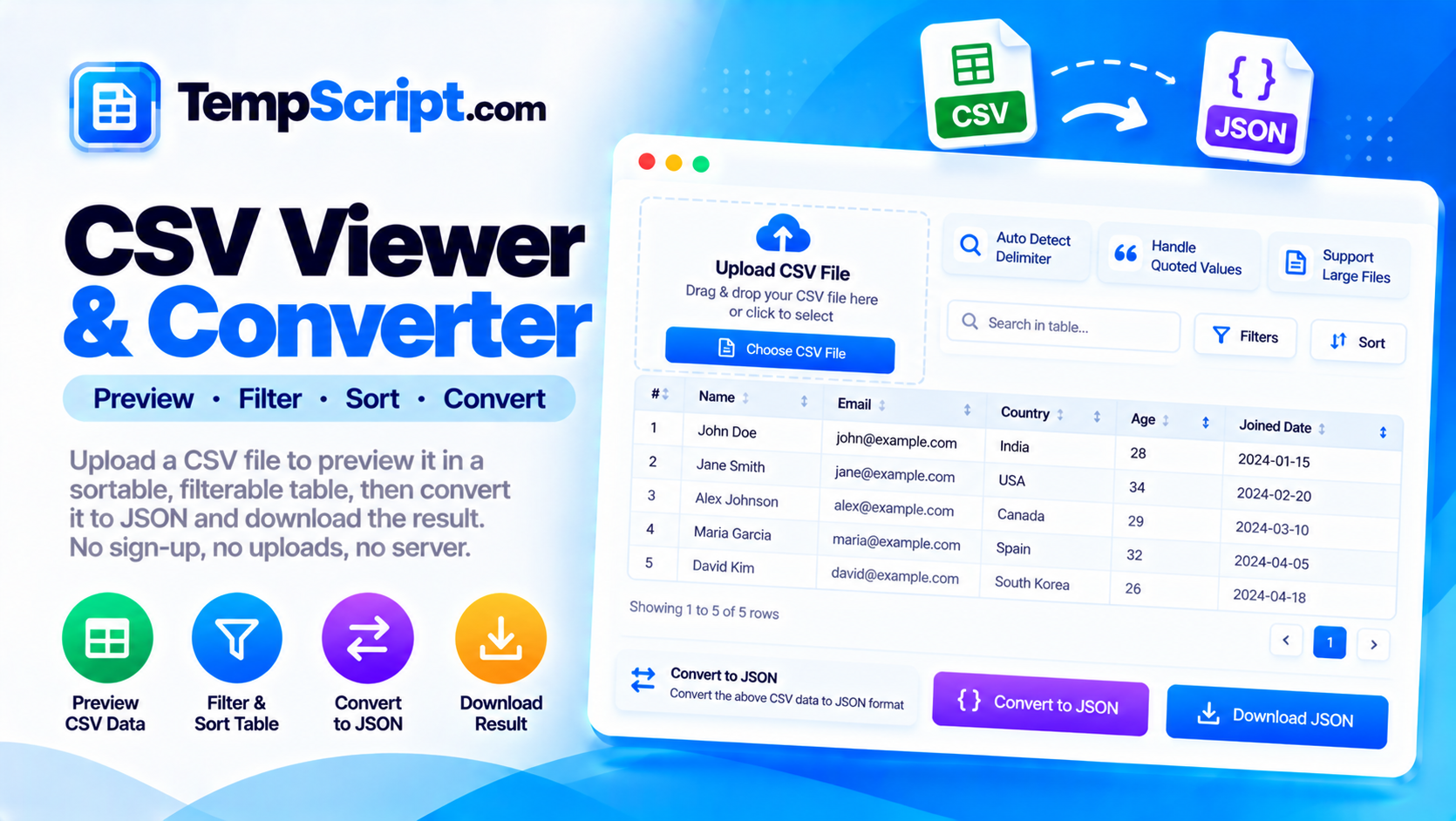
Upload a CSV file to preview it in a sortable, filterable table, then convert it to JSON and download the result. Delimiter detection, quoted values, embedded commas and newlines are all handled correctly. No sign-up, no uploads, no server.

CSV viewer and converter tool

Private by design. CSV files are read and processed entirely in your browser using JavaScript. Nothing is uploaded, stored, or logged anywhere.

Drop a CSV file here

or click to browse — you can also paste CSV text below

.csv, .tsv, .txt — up to ~25 MB recommended

Or paste CSV text instead
CSV viewer and converter with a table preview and JSON output panel
Upload a CSV, preview it in a table, filter and sort, then convert to JSON.

How to use the CSV viewer and converter

  1. Load a CSV. Drag a file onto the drop zone, click Choose CSV, or paste the raw text into the paste box.
  2. Check the delimiter. The tool auto-detects commas, semicolons, tabs and pipes. A badge above the table shows which one it chose.
  3. Explore the table. Click any column header to sort. Use the filter field under each header for per-column filtering, and the search box to find text across all cells.
  4. Convert to JSON. The JSON panel below the table updates as you filter. Use the header row option to switch between key-value objects and plain arrays.
  5. Download or copy. Copy the JSON to your clipboard, or download it as a .json file. You can also re-download the filtered data as CSV.

Key features and benefits

Delimiter detection

Automatically detects commas, semicolons, tabs and pipes by analysing the first several lines of the file.

Robust quoting

Follows RFC 4180 conventions so quoted values can contain commas, newlines and escaped double quotes.

Sort any column

Click a header to sort ascending or descending. Numbers, dates and text are compared appropriately.

Column filters

Each column has its own filter field. Combine filters with the global search to narrow down quickly.

JSON conversion

Convert the visible rows to JSON with the header row as keys, or as plain arrays when no header is present.

Fully private

Files are read and processed entirely in your browser. Nothing is uploaded, stored, or logged anywhere.

Privacy and limitations

  • Fully client-side. CSV files are read via the File API and parsed with JavaScript. No content is transmitted to any server.
  • No tracking of content. The tool does not record which files you open or what filters you apply. There is no analytics on data content.
  • No automatic saving. Data is held in memory only. Reloading the page clears everything.
  • Encoding. Files are decoded as UTF-8. If a file uses a different encoding (like Latin-1 or Shift-JIS), some characters may appear garbled. Most modern CSVs are UTF-8.
  • Large files. Files up to a few megabytes work well. Very large files may be slow because parsing and rendering happen in memory. Sorting and filtering on tens of thousands of rows is generally fine on modern devices.
  • Read-only viewer. This tool does not edit cells. To change data, edit the source file in a spreadsheet application and re-upload it.

Frequently asked questions

Is my CSV file uploaded to a server?
No. The file is read from your device and processed entirely in your browser using JavaScript. It is never uploaded, stored, or logged anywhere.
How is the delimiter detected?
The tool examines the first several lines of the file and counts how often commas, semicolons, tabs and pipes appear outside of quoted sections. The delimiter that produces the most consistent column count is chosen.
Are quoted values with commas handled correctly?
Yes. The parser follows the RFC 4180 conventions: values wrapped in double quotes can contain commas, newlines and escaped double quotes (written as two consecutive double quote characters).
What JSON format is produced?
By default the first row of the CSV is treated as a header, and each subsequent row becomes a JSON object with keys matching the header. If you disable the header option, each row becomes an array of values instead.
Does it work with very large files?
Files up to a few megabytes work well. Very large files may slow the browser because all parsing and rendering happens in memory. If the preview feels sluggish, try turning off filters and sorting and converting only what you need.
Can I edit the CSV data?
This tool focuses on viewing, filtering, sorting and converting. It does not provide inline cell editing. Edit your source file in a spreadsheet application and re-upload it here for inspection or conversion.

A practical guide to CSV: parsing, quirks and conversion

CSV — comma-separated values — is one of the oldest and most widely used data formats. Every spreadsheet application can export it, every database can import it, and almost every programming language has a library for reading it. Its simplicity is its strength: a CSV file is just text, and you can open one in any editor. But that simplicity also hides a number of quirks that trip up naive parsers, and understanding them makes the difference between a tool that works for spreadsheets and one that works for real-world data.

The rules that matter

RFC 4180 is the closest thing CSV has to an official specification. Its key rules are:

  • Records are separated by newlines. Either \n or \r\n works, and a robust parser handles both.
  • Fields are separated by a delimiter. Comma is standard, but semicolon and tab are common in regions where the comma is used as a decimal separator.
  • Fields containing the delimiter, a newline, or a double quote must be quoted. The whole field is wrapped in double quotes.
  • Double quotes inside a quoted field are escaped by doubling. A literal " becomes "". This is the rule that most homegrown parsers miss.

Why the delimiter matters

An exported file from a European spreadsheet application often uses semicolons because commas are the decimal separator in many European locales. Files exported from database tools often use tabs. A good CSV parser either detects the delimiter automatically or lets the user choose. Detection usually works by counting candidate delimiters on the first several lines and picking the one that produces the most consistent number of columns.

Converting CSV to JSON

JSON has become the default format for APIs and config files, so converting CSV to JSON is a common task. The standard approach is to treat the first row as a header, then map each subsequent row to an object where the keys are the header names. This produces readable, self-describing data. When a file has no header, each row becomes an array of values instead, preserving order without imposing names. Both shapes have their uses — objects are more readable, arrays are more compact and easier to process programmatically.

Common pitfalls to watch for

  • Quoted commas. A value like "Smith, John" contains a comma that is not a field separator. A naive parser will split it into two fields.
  • Quoted newlines. A value like "Line one\nLine two" spans multiple lines but is one field. Simple line-based splitting fails here.
  • Escaped quotes. The value He said ""hello"" decodes to He said "hello". Both the encoding and decoding need to be handled.
  • Byte order marks. Some files start with an invisible BOM character. If it is not stripped, the first header name may look corrupted in the output.
  • Inconsistent columns. Some rows may have fewer columns than the header. A good converter either pads or reports this clearly.

About this tool

This CSV viewer and converter is part of the TempScript free online tools collection. It runs entirely in your browser, requires no account, and never sends your data anywhere. If you work with data and text regularly, you may also find our JSON formatter and URL encoder and decoder useful.

© 2026 TempScript. All rights reserved.