
Multiple images
Upload up to 100 images at once. Each becomes a page in the final PDF, in the order you choose.
Combine JPG, PNG and WebP images into a single PDF. Upload multiple images, drag to reorder them, choose a page size and orientation, set margins, and download the result. Everything runs locally in your browser — no uploads, no sign-up.
Private by design. Images are read from your device and embedded into the PDF entirely in the browser using pdf-lib and the HTML5 Canvas API. Nothing is uploaded, stored, or logged anywhere.
or click to browse — JPG, PNG and WebP are supported
You can select multiple files at once. Up to 100 images, ~150 MB total.
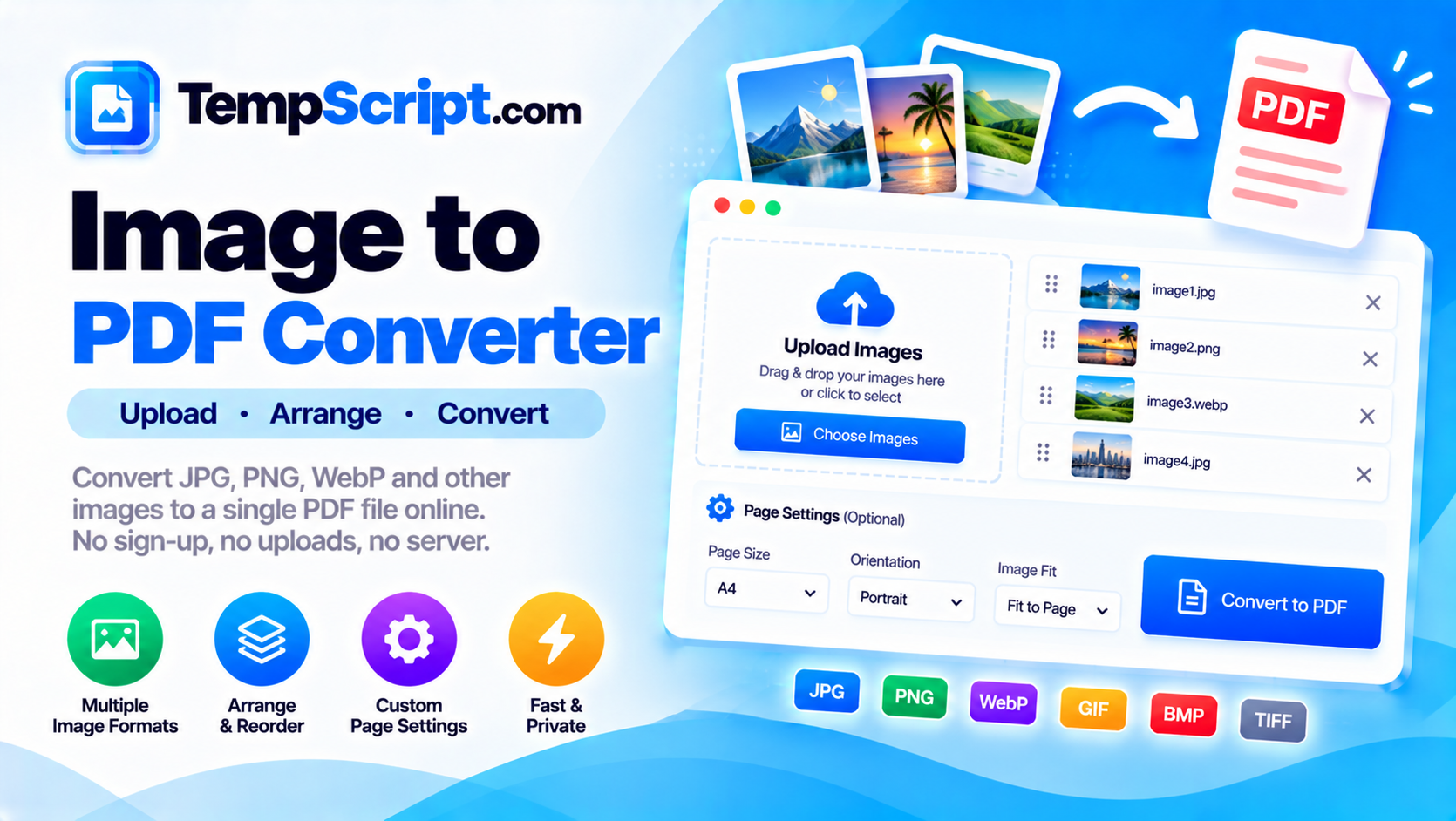
Upload up to 100 images at once. Each becomes a page in the final PDF, in the order you choose.
Pick up any image card and drop it into a new position. Up/down arrows provide a keyboard-friendly alternative.
Choose A4, Letter, Legal, A3, A5, or "Fit to image" for pages that match each image's own dimensions.
Set the margins with a slider and toggle portrait or landscape. The preview updates as you change settings.
Images are read from disk and embedded directly. Nothing is uploaded, stored, or logged anywhere.
Images grid and settings panel sit side by side on desktop and stack neatly on mobile.
PDF is the universal format for sharing documents that need to look the same everywhere. When you have a series of images — scanned pages, receipts, artwork, or screenshots — combining them into a single PDF makes them easier to file, email, print and archive. A browser-based converter that runs on your device is often the fastest and most private way to do it.
A folder of images is awkward to share and easy to get out of order. A PDF, by contrast, is a single file with a defined page order. It opens identically on any device, preserves the exact layout, and can be printed without additional setup. Most email clients, cloud drives and document management systems treat PDFs as first-class citizens, which makes them the practical choice for anything that will be reviewed, submitted or stored.
Orientation controls whether the long edge of the page is vertical (portrait) or horizontal (landscape). For scanned text documents, portrait is almost always correct. For wide photos, screenshots or diagrams, landscape often fits better. The orientation applies to all pages at once in this tool, so choose the one that matches the majority of your images.
Margins add a blank border around each image. They are useful when a page will be printed and you want to avoid the edges being clipped by the printer. For on-screen viewing, zero margins give the largest image. When it comes to file size, the biggest factor is the resolution of the source images. A 4000-pixel-wide photo embedded at full resolution can be several megabytes on its own; re-encoding at a lower quality dramatically reduces the size with little visible difference on screen.
This Images to PDF converter is part of the TempScript free online tools collection. It runs entirely in your browser, requires no account, and never sends your files anywhere. If you work with images and documents regularly, you may also find our PDF merger and PDF compressor useful.
© 2026 TempScript. All rights reserved.