PDF Compressor – Reduce PDF File Size | TempScript
100% browser-based • Files never leave your device

PDF Compressor

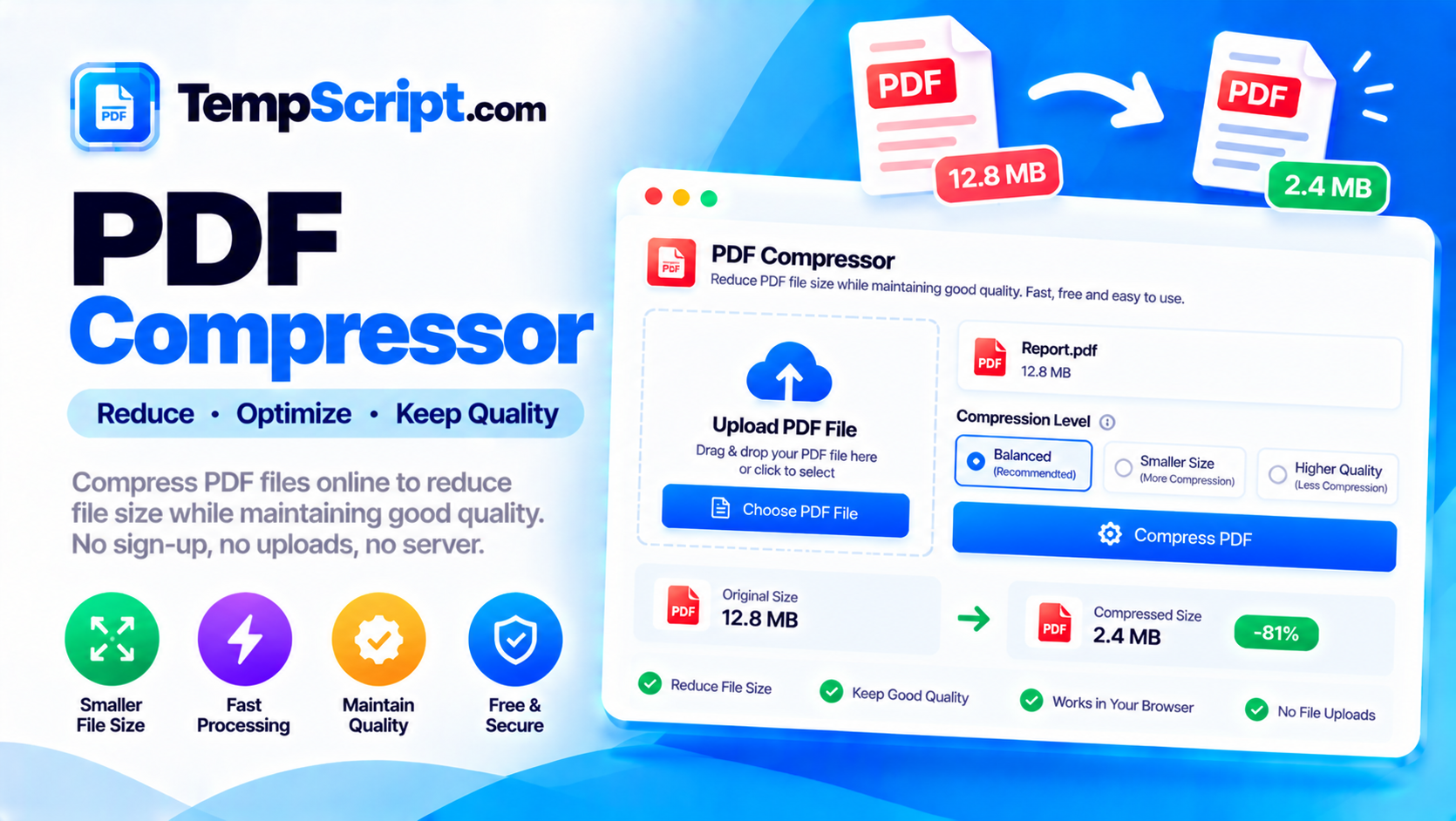
Shrink the size of a PDF by re-encoding its images at a lower quality and choosing a compression preset. See the original and output sizes side by side, then download the smaller file. No uploads, no sign-up, no watermark.

PDF compressor tool

Private by design. PDFs are read and rewritten entirely in your browser using pdf-lib and the HTML5 Canvas API. Nothing is uploaded, stored, or logged on any server.

Drop a PDF here

or click to browse — one file at a time

Up to about 50 MB. Encrypted PDFs are not supported.

PDF compressor with a preview of the first page and a size comparison before and after compression
Upload a PDF, choose a compression preset, and download the smaller file.

How to use the PDF compressor

  1. Upload a PDF. Drag a file onto the drop zone or click Choose PDF. A preview of the first page appears on the left.
  2. Pick a compression preset. Choose Light, Balanced, Strong or Max depending on how much size you need to save.
  3. Fine-tune (optional). Adjust the image quality slider, limit the maximum image width, and toggle metadata preservation.
  4. Click Compress PDF. The tool reads each page, re-encodes images and rebuilds the PDF. A progress bar shows how far along it is.
  5. Check the result and download. The original and output sizes appear side by side, with the percentage saved. Download the compressed file, or keep the original if the result is not smaller.

Key features and benefits

Image re-encoding

Embedded raster images are re-encoded as JPEG at a lower quality, which is where most of the size saving comes from.

Four presets

Light, Balanced, Strong and Max give you a quick way to trade quality against size without micromanaging sliders.

Before / after view

The original and compressed sizes appear side by side with the exact percentage saved, so you can decide whether to keep the result.

Max width control

Downscale very large images before re-encoding to avoid wasting bandwidth on detail that will not be visible on screen.

Fully private

Files are read and rewritten entirely in your browser. Nothing is uploaded, stored, or logged anywhere.

Responsive layout

Preview and settings sit side by side on desktop and stack neatly on mobile.

Privacy and limitations

  • Fully client-side. The PDF is read with the File API, parsed by pdf-lib, and its images are re-encoded with the HTML5 Canvas API. No content is transmitted to any server.
  • No tracking. The tool does not record which files you upload or what settings you choose. There is no analytics on file content.
  • No automatic saving. Files are held in memory only. Reloading the page clears everything.
  • Compression is not always possible. PDFs that are already optimised, or that contain mostly text and vector graphics, may not shrink — and in rare cases may grow slightly. The tool tells you when this happens so you can keep the original.
  • Text and vector content is preserved. Text stays selectable and vector shapes stay sharp. The re-encoding step applies only to embedded raster images.
  • Encrypted PDFs are not supported. If a file requires a password, remove the password first and save an unprotected copy.
  • Memory limits. Files up to about 50 MB work well. Larger files may be slow because all processing happens in memory.

Frequently asked questions

Are my PDF files uploaded to a server?
No. All compression happens locally in your browser using the pdf-lib JavaScript library and the HTML5 Canvas API. Your files never leave your device.
Why is my PDF sometimes larger after compression?
A PDF that already uses efficient compression, or one that is mostly text and vector graphics without large images, may not shrink further. In some cases re-encoding can slightly increase the file size. The tool will tell you when this happens and you can choose to keep the original.
What kind of PDFs compress well?
Scanned documents, image-heavy brochures, and PDFs exported from presentation software usually compress well because they contain large embedded images that can be re-encoded at a lower quality. PDFs made entirely of text and vector graphics see little benefit.
Does compression reduce quality?
Yes, at high compression settings. Images are re-encoded as JPEG, which discards visual details that are hard for the eye to notice. Text and vector graphics are preserved exactly. The four presets let you trade file size against image fidelity.
Will links and interactive fields keep working?
The current version focuses on image re-compression. Bookmarks, links and form fields are not always preserved. If your document depends on those, keep a copy of the original.
Is there a size limit?
The tool works well with PDFs up to about 50 MB. Very large files may be slow because all processing happens in memory. If the browser runs out of memory, try compressing fewer pages at a time.

A practical guide to PDF compression

PDF is a container format. It stores text, vector graphics and raster images side by side, along with the metadata that ties them together. That flexibility is why PDFs are so widely used, and it is also why some PDFs are huge and others are tiny. A twenty-page text document may weigh less than 200 KB; a ten-page brochure with high-resolution photographs may weigh 30 MB. Compressing a PDF is mostly about finding where the bulk lives and reducing it without visible loss.

Where the bytes come from

Three sources account for almost all of a PDF's file size:

  • Embedded images. Photographs, screenshots and scans are almost always the dominant cost. A single 300 dpi A4 scan can be 5–15 MB on its own.
  • Embedded fonts. Fonts are usually a few hundred kilobytes each, and a document that uses six typefaces embeds all six. Subsetting helps, but the fonts are still substantial.
  • Structure and metadata. The page tree, cross-reference table and XMP metadata add up to a few kilobytes even in a simple document, and can grow with heavy annotation.

Text itself takes almost no space. It is the images that make PDFs heavy, which is why the most effective compression is image re-encoding.

Lossy vs. lossless image compression

Raster images inside a PDF are typically stored as either JPEG (lossy) or Flate/PNG (lossless). Re-encoding a lossless image to JPEG at moderate quality usually produces a file 5–10× smaller with no visible difference on screen. Re-encoding a JPEG that is already compressed at high quality produces a smaller file but with more visible artifacts, which is why good tools offer a range of quality settings rather than a single "compress" button.

What this tool does

This compressor renders each page in a temporary canvas, extracts the embedded raster images, downsizes them if they exceed the maximum width you chose, re-encodes them as JPEG at your quality setting, and rebuilds the page using the newly encoded images. Text and vector graphics are left untouched, so they stay crisp and selectable. The result is a new PDF, and the original file on your disk is not modified.

When compression is limited

Not every PDF can be made smaller. If the document is mostly text, if its images are already small, or if it has already been through a professional optimiser, there may be little room to save. In a few edge cases the re-encoding step can even produce a slightly larger file than the original. The tool is transparent about this: it shows you the exact sizes before and after, and it tells you when the result is larger so you can keep the original.

About this tool

This PDF compressor is part of the TempScript free online tools collection. It runs entirely in your browser, requires no account, and never sends your files anywhere. If you work with PDFs regularly, you may also find our PDF merger and PDF page organizer useful.

© 2026 TempScript. All rights reserved.