
Tiny 1.4 MB build
Uses a purpose-built audio-only FFmpeg WASM build instead of the standard 30 MB core. Much faster first load.
Extract the audio track from a video file and download it as MP3, AAC, WAV or Opus. The tool uses a compact audio-only FFmpeg WebAssembly build that is only 1.4 MB — much smaller than the full FFmpeg WASM. Everything runs locally in your browser.
Private by design. The conversion runs entirely in your browser using a WebAssembly build of FFmpeg. Your video never leaves your device. On first use, a small audio-only FFmpeg build (1.4 MB) is downloaded and cached.
or click to browse — MP4, WebM, MOV, MKV and AVI are supported
Up to ~500 MB depending on your device's memory.
MP3 is universally supported. Choose WAV or FLAC for lossless output.
Accepts seconds (15), MM:SS (1:30) or HH:MM:SS (0:01:30).
Your audio file is ready.
This tool runs a purpose-built audio-only FFmpeg build in your browser. It is only 1.4 MB, compared with the standard FFmpeg WASM build which is about 30 MB.
The build is downloaded on first use and cached by your browser, so subsequent conversions start instantly.
If the source audio codec matches the output format, the audio can be copied without re-encoding — lossless and very fast.
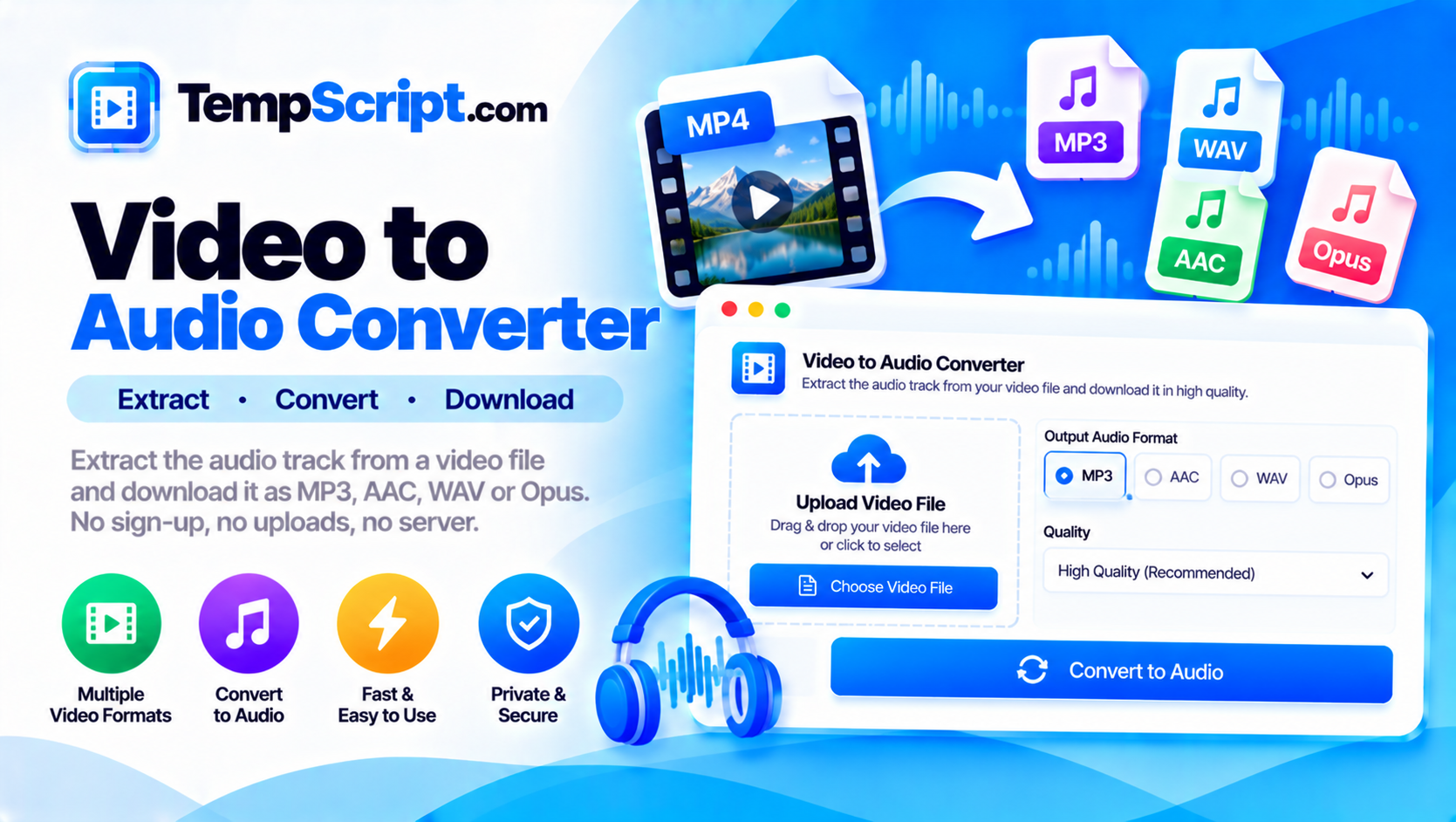
Uses a purpose-built audio-only FFmpeg WASM build instead of the standard 30 MB core. Much faster first load.
MP3, AAC, WAV, Opus, Vorbis and FLAC. Choose lossy for small files or lossless for perfect quality.
Set a start and end time to extract only the part of the audio track you need.
Files are processed locally in your browser. Nothing is uploaded, stored, or logged anywhere.
The build is cached by your browser after the first download, so later conversions start instantly.
Works comfortably on phones, tablets and desktop screens.
The tool accepts any video container that your browser can play, and can output the following audio formats.
| Format | Extension | Type | Notes |
|---|---|---|---|
| MPEG Audio Layer III | .mp3 | Lossy | Universally supported |
| AAC | .aac | Lossy | Better quality than MP3 at the same bitrate |
| Waveform Audio | .wav | Lossless | Large files, perfect quality |
| Opus | .opus | Lossy | Best modern codec for speech and music |
| Ogg Vorbis | .ogg | Lossy | Open format, well supported |
| FLAC | .flac | Lossless | Lossless compression, smaller than WAV |
Extracting audio from a video is a common task with many use cases: saving a lecture or interview as a podcast, pulling the music from a concert recording, or turning a presentation into an audio-only file you can listen to on the go. Doing it in the browser means you do not have to install anything, and it can be done without uploading your files to a server.
Desktop tools like the command-line FFmpeg are powerful, but they require installation and a bit of familiarity with the terminal. Online services are convenient but typically upload your file to a remote server, which is a problem for anything confidential. A browser-based converter that runs entirely on the client gives you the best of both worlds: the convenience of a website and the privacy of a desktop application.
The technology that makes this possible is WebAssembly, a binary instruction format that runs at near-native speed inside the browser. FFmpeg — the industry-standard tool for audio and video processing — has been compiled to WebAssembly, so the same code that powers professional video pipelines can run entirely in your browser.
The standard FFmpeg WASM build is around 30 MB, which is a lot to download just to extract an audio track. It includes encoders and decoders for video, subtitles, and dozens of codecs you will never need for audio extraction. That is why this tool uses a purpose-built audio-only build that comes in at just 1.4 MB — about 1/20th the size.
The audio-only build supports all the common audio codecs (MP3, AAC, WAV, Opus, Vorbis, FLAC) but none of the video ones. Since we only need to extract audio, the video codecs are unnecessary. The result is a much faster first load and a smaller memory footprint.
When you extract audio, there are two approaches. The first is stream copy, which takes the compressed audio data out of the video container and writes it into a new file without decoding it. This is lossless and extremely fast. The second is re-encoding, which decodes the audio and re-encodes it in the target format. This is slower and lossy, but it is necessary when the source and target formats differ.
A good converter picks the right approach automatically. If you ask for MP3 output from a video that already contains MP3 audio, stream copy is used. If you ask for WAV output from a video that contains AAC audio, re-encoding is necessary because the formats are fundamentally different.
This video to audio converter is part of the TempScript free online tools collection. It runs entirely in your browser, requires no account, and never sends your files anywhere. If you work with media regularly, you may also find our audio trimmer and image compressor useful.
© 2026 TempScript. All rights reserved.