
Up to 500% boost
Raise audio from muted to five times the original volume, with one-click presets for the most common levels.
Boost the volume of your audio and video files from 0% up to 500%. Preview the result live in your browser, then download a genuinely processed file with the volume applied. No uploads, no sign-up, no watermark.
Private by design. Files are read, previewed and processed entirely in your browser using the Web Audio API and FFmpeg compiled to WebAssembly. Nothing is uploaded, stored, or logged anywhere.
Watch out for distortion. Boosting above 100% can cause clipping, distortion and amplified background noise. Use the optional clipping protection or keep the boost modest for best results.
or click to browse — one file at a time
Audio: MP3, WAV, M4A, OGG, Opus, FLAC. Video: MP4, WebM, MOV, MKV.
File size: 1 KB minimum — 100 MB maximum
Your boosted file is ready.
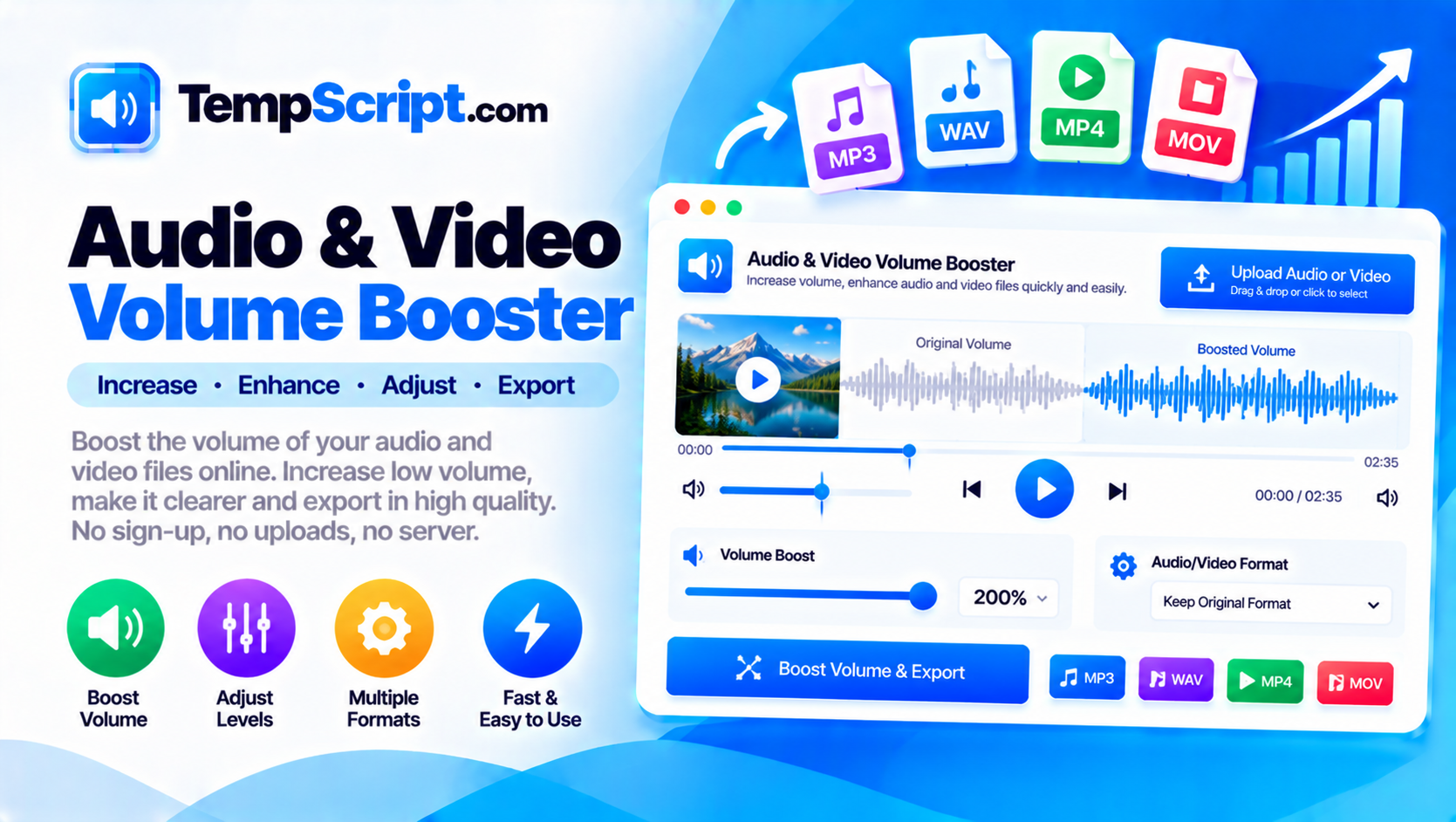
Raise audio from muted to five times the original volume, with one-click presets for the most common levels.
Hear exactly what the boosted audio will sound like before you download anything, using the Web Audio API.
Boost the audio track of MP4, WebM, MOV and MKV files while preserving the video itself, untouched.
An optional limiter caps peaks at the maximum safe level so boosted audio stays clean instead of distorting.
Files are decoded and processed in your browser. Nothing is uploaded, stored, or logged anywhere.
Comfortable on phones, tablets and desktops, with the same clean TempScript design throughout.
Input support depends on what your browser can decode. Video output uses FFmpeg.wasm for accurate processing while preserving the video track.
| Type | Formats | Preview | Export |
|---|---|---|---|
| Audio | .mp3, .wav, .m4a, .ogg, .opus, .flac | Yes | Yes (same or converted) |
| Video | .mp4, .webm, .mov, .mkv | Yes | Yes (video preserved) |
If your browser cannot decode a format, an error is shown with an explanation. Try converting to MP3 or MP4 first.
Not every recording comes out at a comfortable listening level. A lecture captured on a phone can be too quiet to play in a room, a video call can come through muffled, and a downloaded song can simply be mastered at a lower volume than the rest of your library. A dedicated volume booster lets you raise the level without needing a full audio editor.
Every audio file is a series of samples, each representing the amplitude of the sound at a moment in time. Boosting the volume multiplies each sample by a factor — 200% boost means every sample is multiplied by two. This is a simple, fast operation, but it has one important consequence: samples can only go so high before they exceed the maximum amplitude the format can represent, which is called clipping. Clipping produces a harsh, distorted sound, especially in loud passages.
A limiter is a small algorithm that watches for peaks that would clip and pulls them down just enough to fit. The result is a louder overall signal without the harsh edges of raw clipping. When clipping protection is on in this tool, the boosted audio is passed through a limiter before it is encoded, so the output stays clean even at 300% and 500% boosts. When it is off, the raw multiplier is applied — useful for analysing very quiet audio, but risky for anything with existing loud peaks.
For video files, the audio track is separated from the video track and boosted independently. The video track is left untouched — the same frames, the same pixel data, the same duration. Only the audio is re-encoded with the new volume. This keeps the video quality identical while giving you the louder sound you asked for. Synchronisation is preserved because the audio sample count does not change; only the amplitude of each sample does.
This volume booster is part of the TempScript free online tools collection. It runs entirely in your browser, requires no account, and never sends your files anywhere. If you work with audio and video regularly, you may also find our Audio Trimmer and Video to Audio Converter useful.